






PLAYER GUIDE · VERSION 1.0
A text guide to the menus, systems and controls in AfterWar 1.0.
PC + Android17 chapters
Reading progress01 / 17
Chapter 01
AfterWar: Grand Strategy
GRAND STRATEGY
- Lead a country in the world of 2028.
- Manage, negotiate, plan and fight on a 3D world map.
- Created in Ukraine by solo developer Dmytro Lumen.
OFFICIAL
- ! Website: afterwargame.com
- > Contact: dmytrolumen@gmail.com
FOLLOW AND CONTACT
- # Discord | Steam | Google Play | YouTube | X
- # Telegram | Instagram | TikTok - links on afterwargame.com
Chapter 02
Main menu, LAN and country selection
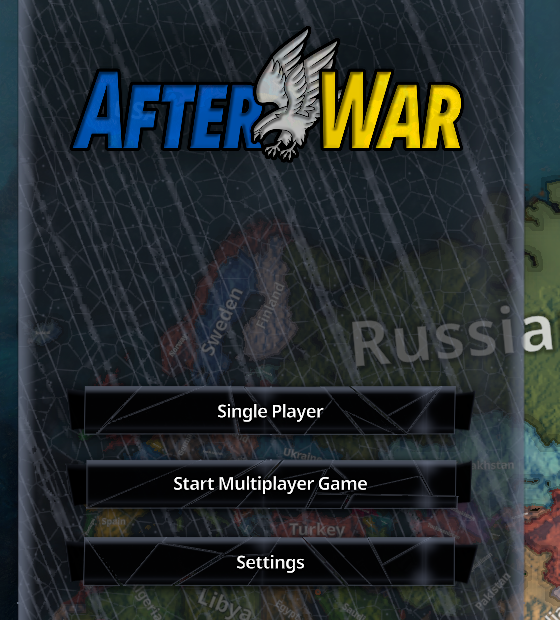
SINGLE PLAYER
- # Private local session.
- Choose a country and start.
HOST
- ! Start Multiplayer Game.
- Start a game for other players.
- Your room appears in the multiplayer list.
JOIN
- > The multiplayer list updates automatically.
- Open a room to see host, players and ping.
- + Press Join, then choose an available country.
PC - ANDROID LAN / VPN
- + PC and Android can play together on the same version.
- LAN host picks a free port automatically.
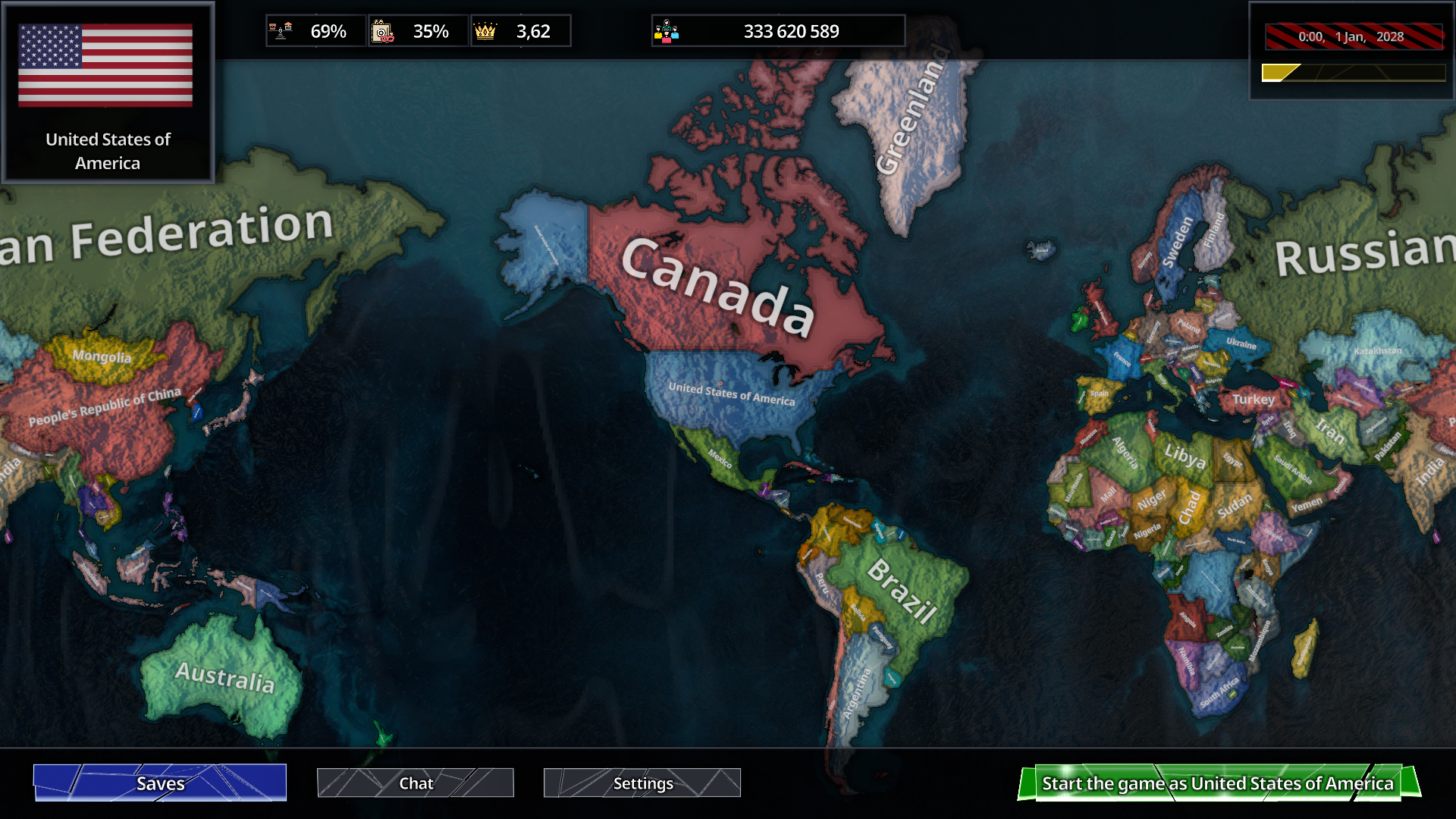
CLAIM A COUNTRY
- > PC: LMB selects a country.
- > Android: double-tap the same country.
- > Complete both taps within 0.6 seconds.
- ! Press Start <country>.
- Taken countries are blocked.
MULTIPLAYER LIMITS
- One player controls one country.
- X Two players cannot share a country.
- Steam rooms: friends-only, up to 16.
- Steam / Discord invites: desktop only.
Chapter 03
Country settings and combat report
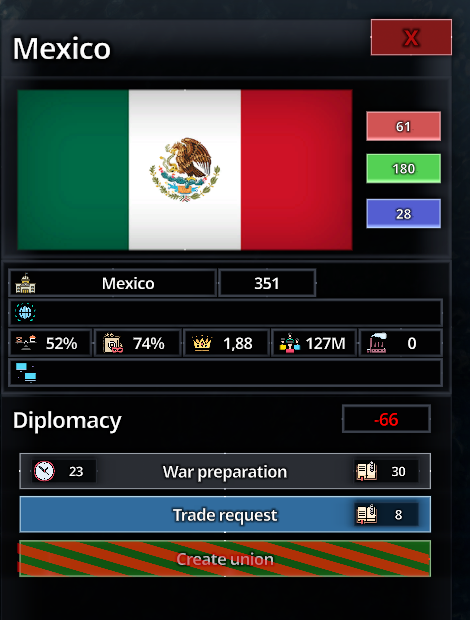
OPEN YOUR COUNTRY PANEL
- > Select your country or click your flag.
- Click its name to rename it in Single Player.
- Host or Admin can rename a selected country in Multiplayer.
CHANGE COUNTRY COLOR
- > Enter Red / Green / Blue values from 0 to 255.
- ! Only your map display changes.
- Country rules and other players stay unchanged.
CHANGE CAPITAL
- > Change Capital -> your Region -> confirm.
- ! Wait 180 game days before changing it again.
- Water and foreign land cannot be capitals.
GENERAL COMBAT REPORT
- > Hover / tap the Population indicator.
- + Available for your country and the selected country.
- # Losses and damage: month, year and all time.
- # Fixed icon order: Land Forces, Fleet, Aviation.
- Top 5 shows who caused losses and who received damage.
- ! An active-battle tooltip shows only that battle.
SELECTED-WORLD SFX
- > Sound follows sector, subregion, country, then sector type.
- + Battles may use military sound instead.
- Now Playing names it. Adjust SFX volume separately.
Chapter 04
Income, factories and financial default
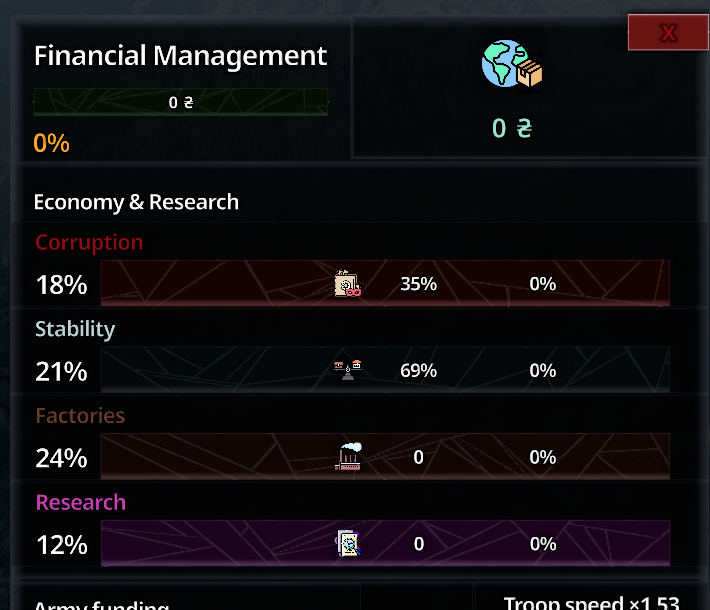
DAILY BASE INCOME
- # Population, Stability, government and Factories determine income.
- The remainder enters your Treasury.
BUDGET AND FACTORIES
- > Set each budget from 0 to 100%.
- X Above 100% spends from Treasury.
- + Fill the Factories bar to build one.
- Maximum: 50 factories.
POPULATION GROWTH
- ! Population grows at Stability 40+.
- At Stability 39 or lower, it shrinks.
- + Growth is fastest at Stability 100.
- War and mobilization reduce population.
GREATNESS
- + Raise population, Stability and factories.
- + Lower Corruption.
- Raises budget limits and movement capacity.
- Water has no territorial control limit.
FINANCIAL DEFAULT
- X Negative Treasury starts a 180-day warning.
- ! Bring it back to 0 to pause the timer.
- X Remaining days do not reset.
- X At the end of the warning:
- THE COUNTRY COLLAPSES.
Chapter 05
Research, mobilization, fleet and aviation
RESEARCH ORDER
- ! Countries may start with different military technologies.
- Funding advances technologies that are still locked.
- Fixed order: Sea -> Airpower -> Ocean.
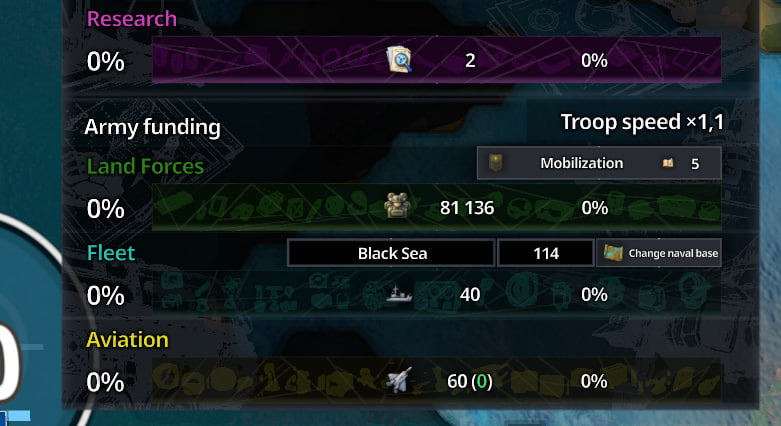
LAND FORCES
- > Fund Land Forces, then press the right button.
- ! It costs 5 Political Will and creates a land unit.
NAVAL BASE
- > Base: a coastal Sea / Ocean sector.
- ! It must border your controlled land.
- Ocean requires Ocean research.
CREATE A FLEET
- > Complete Sea research and fund Fleet / Sea Forces.
- + Each full bar creates ships at your naval base.
- > Change the base from the Fleet row.
- ! It must border your controlled land.
- Ocean requires Ocean research.
- No port building or capital supply is needed.
BUILD AVIATION
- > 1 Complete Airpower research.
- > 2 Fund Aviation production.
- + Each full bar creates 1 aircraft.
- Aircraft support battles automatically.
- Aircraft join battles automatically where most useful.
MOBILIZATION
- ! Button is at the far right
- of the Land Forces row.
- Number 5 = Will cost.
- Mobilized soldiers leave
- civilian population.
- Stored Land budget resets.
- A top message explains why it cannot start.
Chapter 06
Trade, unions and peace
CREATE A UNION
- > 1 Keep an active Trade deal.
- > 2 Build relations to 70+.
- > 3 Avoid threats and broken deals.
- > 4 Common enemies and trust help.
- ! Trade alone moves relations toward 55.
- + Send Create / Invite / Join request.
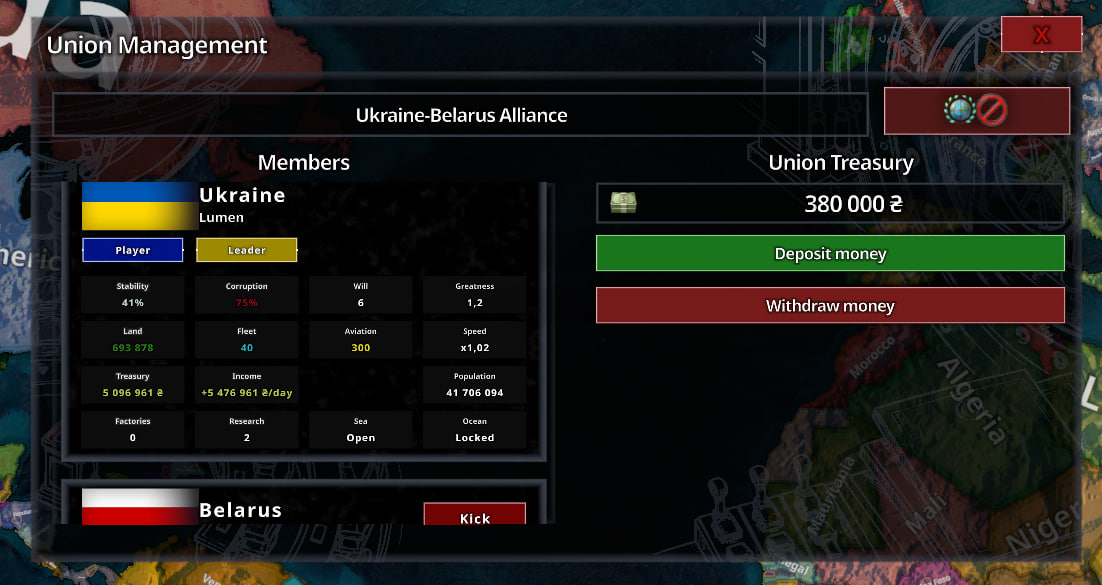
UNION AND TREASURY
- + Members fight as one coalition.
- + Defense plans work on allied sectors.
- + Members cannot attack each other.
- + Relations become 100; trade is secured.
- + AI members contribute to the Treasury and use it when needed.
- > Deposit and Withdraw remain your manual choice.
- ! If a member leaves, its troops begin returning home.
- > Host or Admin can rename a selected union.
TRADE: WHAT YOU ACTUALLY EARN
- # You receive about 1.52% of the partner base income each day.
- # The partner receives about 1.52% of your base income.
- ! Example: partner earns 66M base -> you gain 1M / day.
- > Requires relation 35+ and a connected Trade route.
- X No path: income and daily relation growth pause.
- + The agreement stays active and resumes when the path returns.
HOW TO GET PEACE
- > Select enemy -> Peace -> send request. Cost: 10 Will.
- + Fatigue, losses, pressure and repeated talks help.
- X Enemy advantage, grievances and aggression hurt.
- > For example, create a large encirclement to remove its battlefield advantage, then retry.
- ! A human opponent must accept voluntarily.
Chapter 07
Planning and automatic defense
HOW AUTO-DEFENSE WORKS
- # Auto-defense creates Defense plans on controlled land frontiers.
- + It covers land beside countries you are at war with.
- ! It adapts when the front or control changes.
- Manual plans are never replaced.
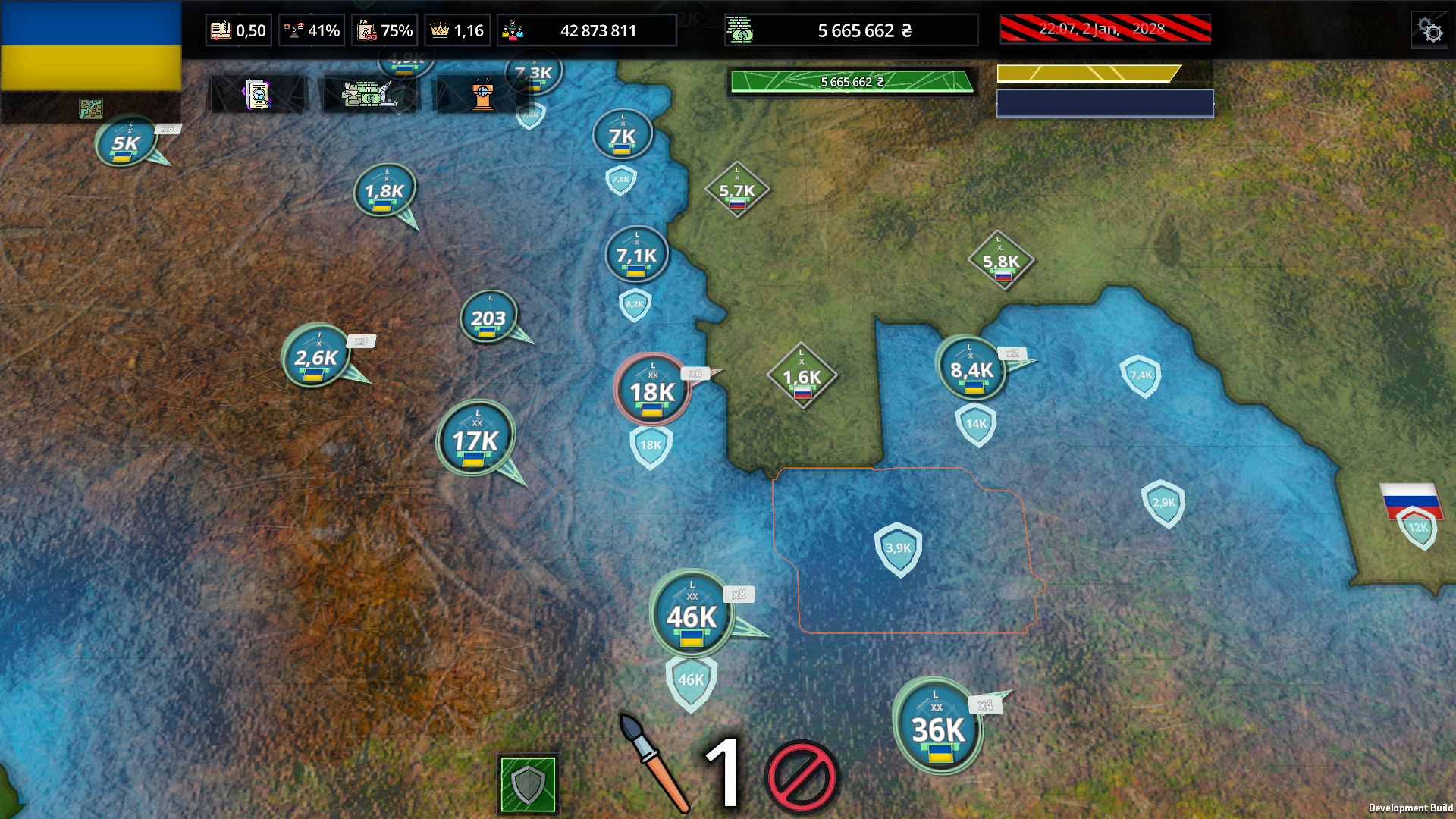
TWO MODES - PRESS THE SHIELD TO CYCLE
- # Press the shield to switch Disabled / Regions.
- X Disabled removes automatic plans; manual ones stay.
- + Regions guards controlled land frontiers.
- Hover or tap to see the mode and plan count.
CREATE / CANCEL A PLAN
- > Brush -> size 1-9 -> PC RMB / Android tap.
- + On land: friendly = Defense; foreign = Attack.
- # Sea / Ocean: manual Defense only.
- Water Defense needs matching research and holds fleets there.
- Water has no Attack, Annex or Decolonization plan. Lakes cannot be planned.
- ! Planning does not declare war.
- Double-click / double-tap Cancel to remove all your plans.
ATTACK PLAN ASSIGNMENT
- > After you draw an Attack plan, wait for free troops to be assigned.
- The planner may pull surplus troops from quieter Defense plans.
- ! Watch your defenses: they can become weaker.
Chapter 08
Select armies and grouped troops
GROUPED TROOPS
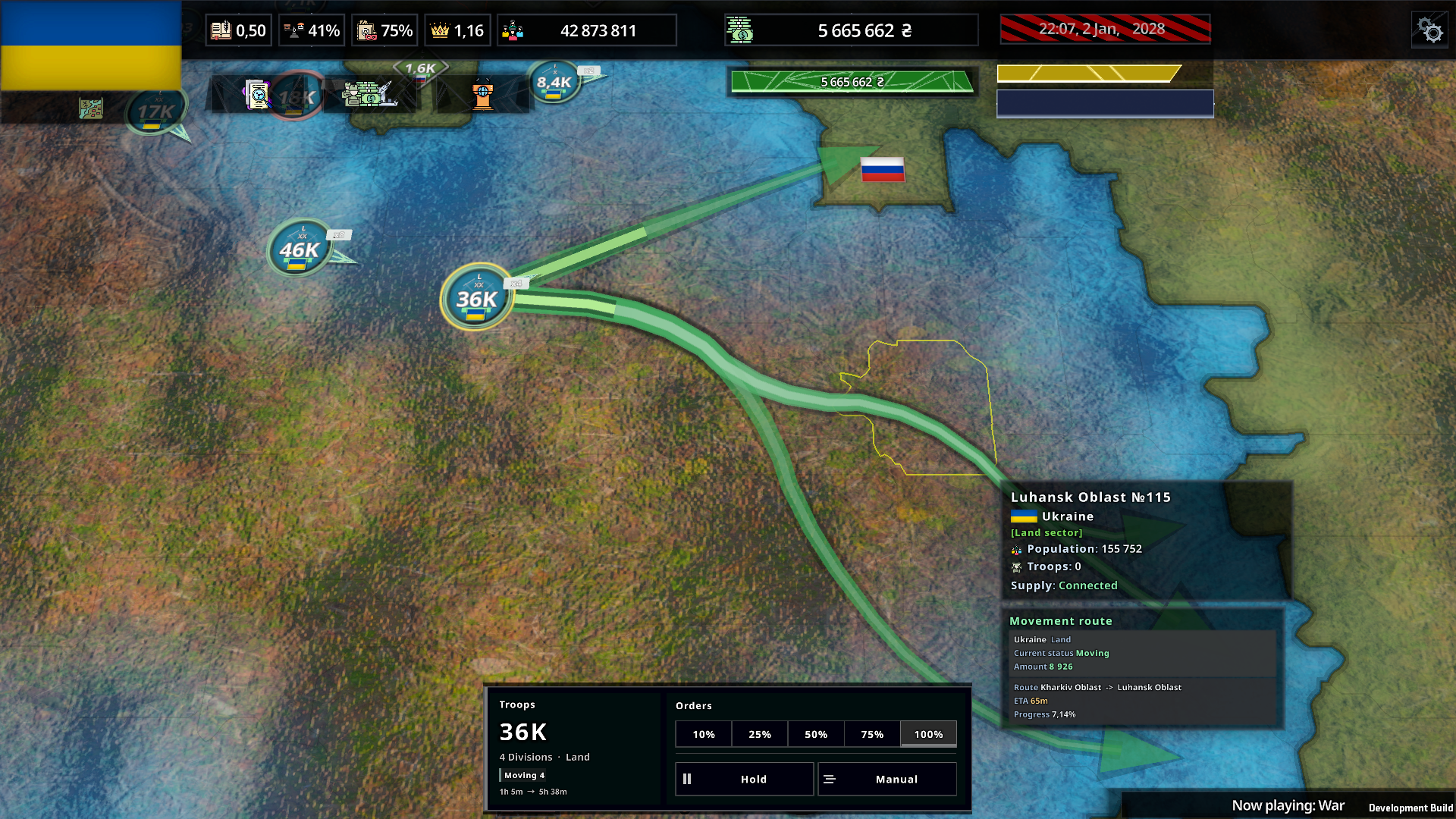
- # 36K is all troops in the group.
- ! x4 means four separate groups combined.
- Status labels show moving, holding or battle.
OPEN A GROUP
- > Select the group, then select it again.
- + Choose any separate group.
- Click empty map space to close it.
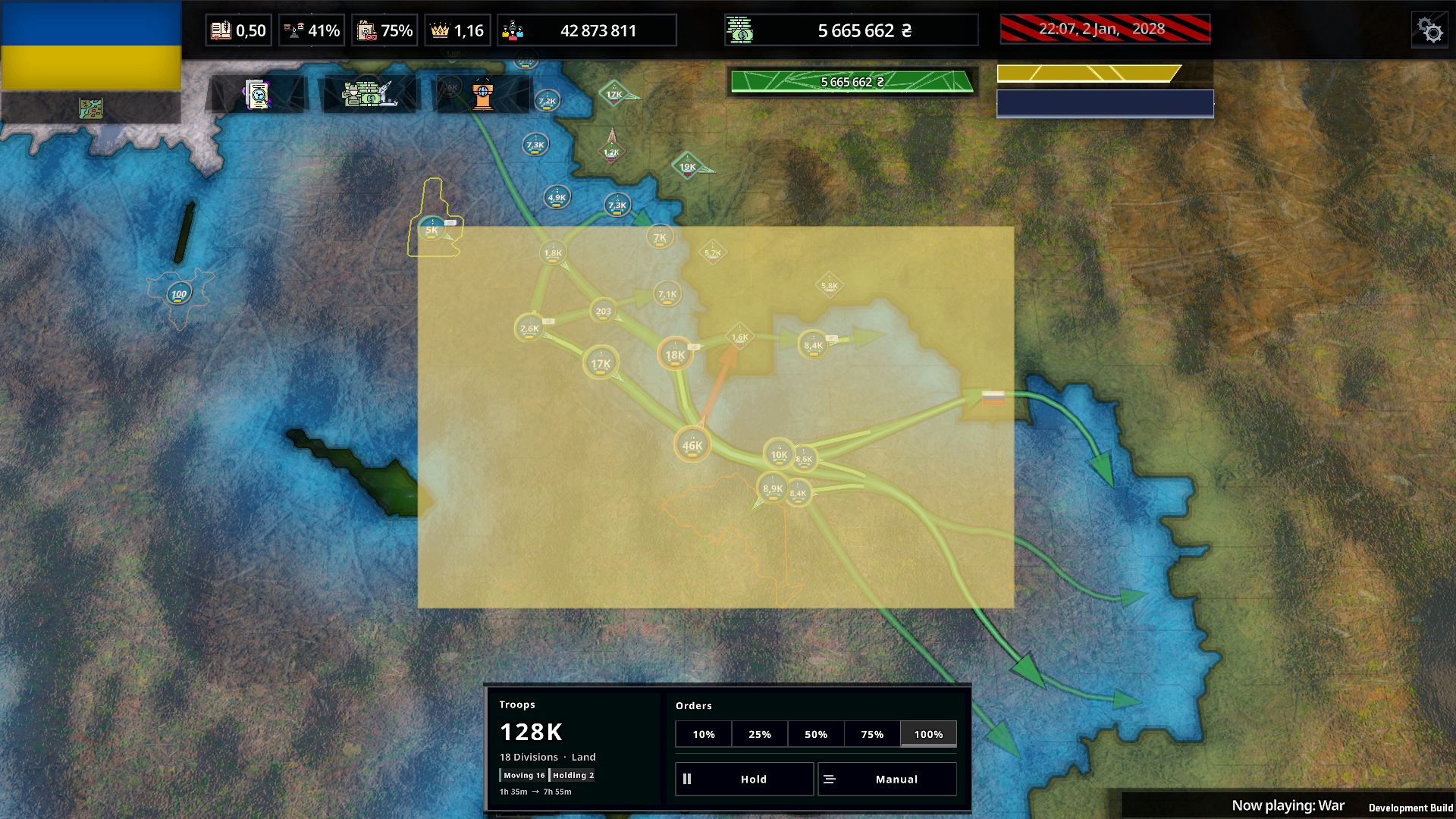
RECTANGLE SELECTION
- > PC: Shift + LMB-drag on empty map.
- > Android: Select -> drag box; or hold 0.35 s -> drag.
- # 18 Divisions selected = 18 groups.
- Moving 16 / Holding 2 shows their orders.
Chapter 09
Fleets, naval battles and amphibious landings
NEUTRAL WATER
- # Sea / Ocean are geography, not territory.
- They have no owner or controller and cannot be captured.
- There is no colonization, decolonization or water cap.
- Victory never grants ownership of water.
FLEETS AND NAVAL BATTLES
- # A fleet is physical ships in the exact water sector.
- + Peaceful and allied fleets may share a sector.
- X Hostile fleets automatically start a naval battle.
- The winner stays; losing hostile ships are destroyed.
AMPHIBIOUS LANDINGS
- > Land forces may cross water without a fleet or water research.
- Each entered water sector compares friendly and hostile ships.
- + Matching or stronger friendly fleets: no crossing losses.
- X No friendly ships against hostile ships: the force is destroyed.
- ! Fewer friendly ships means more crossing losses.
- Survivors land and fight normally.
FLEET MOVEMENT AND PLANS
- > Fleets move only through Sea / Ocean.
- ! Each water type requires its research.
- No port, controlled coast or capital supply is required.
- + Use movement orders or manual water Defense plans.
- Water Defense distributes and holds available fleets.
Chapter 10
Orders, troop assignment and speed
LAND ROUTES THROUGH WATER
- > Land orders can cross Sea / Ocean.
- Route through water manually with Route.
- ! Finish on land; a water endpoint stops at the last reachable land.
- Invalid landing: return or risk destruction when no exit exists.
MOVE + READ LINES
- > PC: RMB destination | Android: Move -> target.
- > Android route: Route -> sectors -> Done.
- # Arrowhead = destination; bright segment = progress.
- Hover / tap line: amount, route, ETA and progress.
- ! Manual orders take priority over plans.
- A top message explains why an order cannot work.
- Partial orders show how many groups moved.
WHAT CHANGES SPEED
- + Stability and Greatness speed troops; Corruption slows them.
- More people in Land Forces also slows travel.
- 10% = +50% time | 20% = twice as long.
- Research does not increase land speed.
Chapter 11
Country panel and diplomacy map
OPEN DIPLOMACY
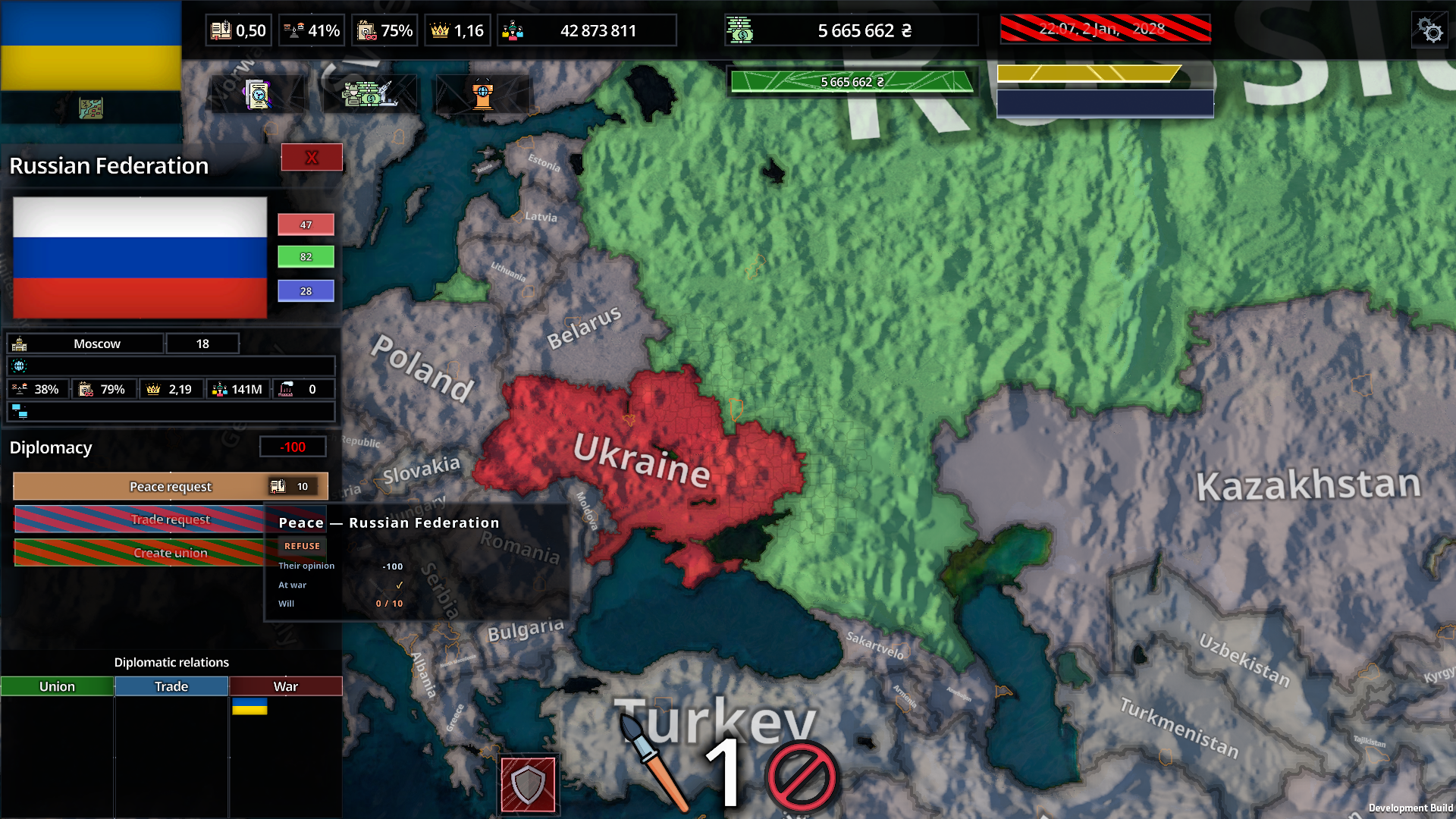
- > Select a country: its panel and relation map open together.
READ THE MAP COLORS
- + GREEN: positive relations with the selected country.
- # GRAY: neutral relations near 0.
- X RED: hostile relations; stronger red means closer to -100.
- The scale is relative to the country whose panel is open.
RELATION LISTS
- > Union: union members and partners.
- > Trade: active trade relationships.
- > War: current enemies.
- Select an entry to inspect or act on that country.
ACTION TOOLTIP
- # Shows the likely answer to your request.
- Their opinion shows the current relation.
- At war confirms the required state.
- ! Will shows available / required Political Will.
Chapter 12
Read the date, calendar and time history
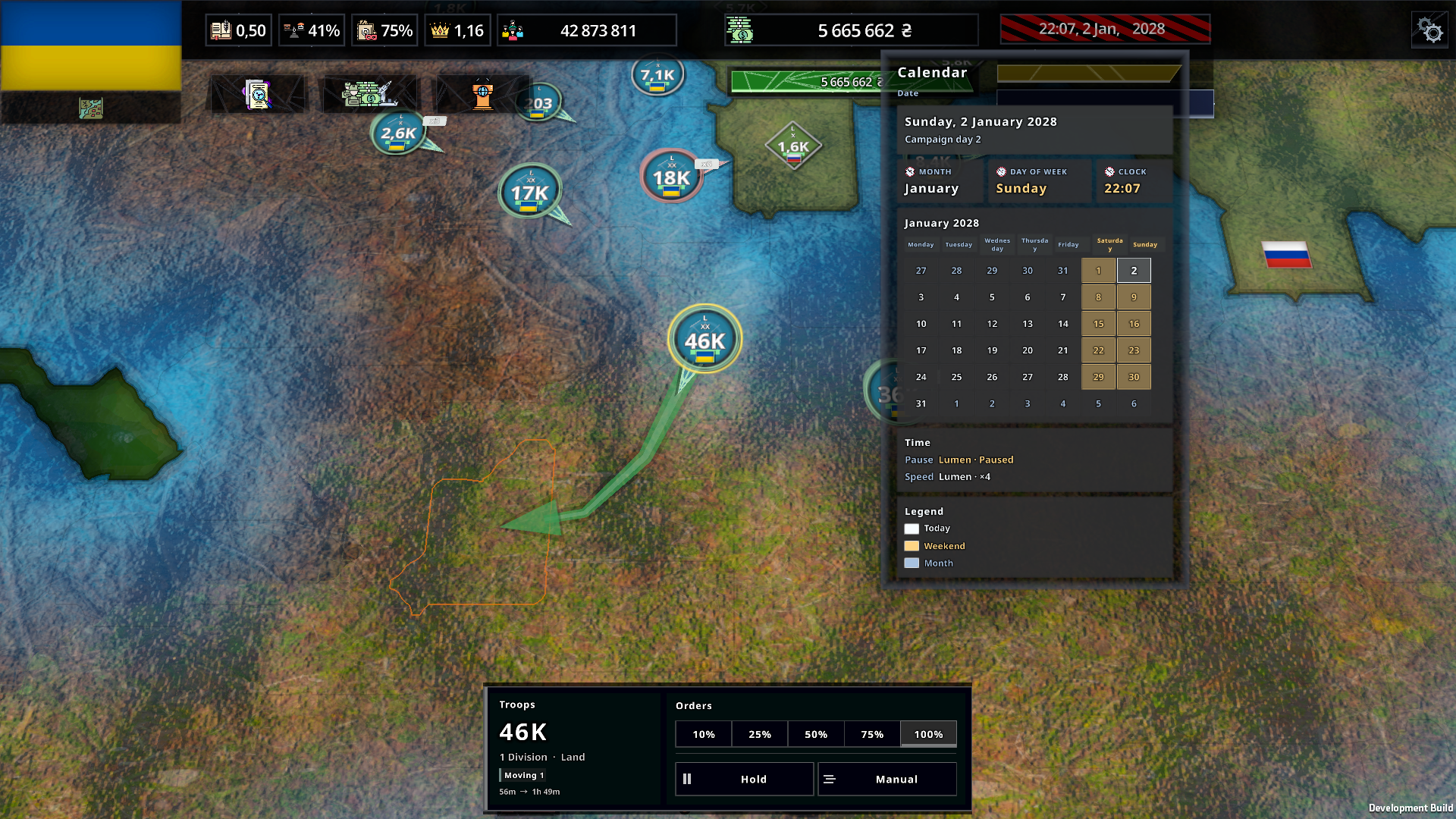
OPEN THE CALENDAR
- > PC: hover the striped date / time bar.
- > Android: tap the date / time bar.
- # Campaign starts on 1 January 2028.
- Campaign day counts elapsed in-game days.
READ THE MONTH
- # White outline: today.
- ! Yellow: Saturday and Sunday.
- > Blue-gray: days outside the current month.
- Weekends are calendar markers, not a separate speed control.
MULTIPLAYER TIME HISTORY
- Pause shows who last paused or resumed.
- Speed shows who last selected the current speed.
PC TIME CONTROLS
- Space: pause / resume.
- 1-5: set game speed.
ANDROID TIME CONTROLS
- Use the visible pause and speed controls.
- The top bar always shows live date and time.
WHAT THE EXAMPLE SAYS
- Sunday, 2 January 2028 | Campaign day 2.
- Paused by Lumen | speed last set to x4.
Chapter 13
Read a battle before giving orders
OPEN + READ IN ORDER
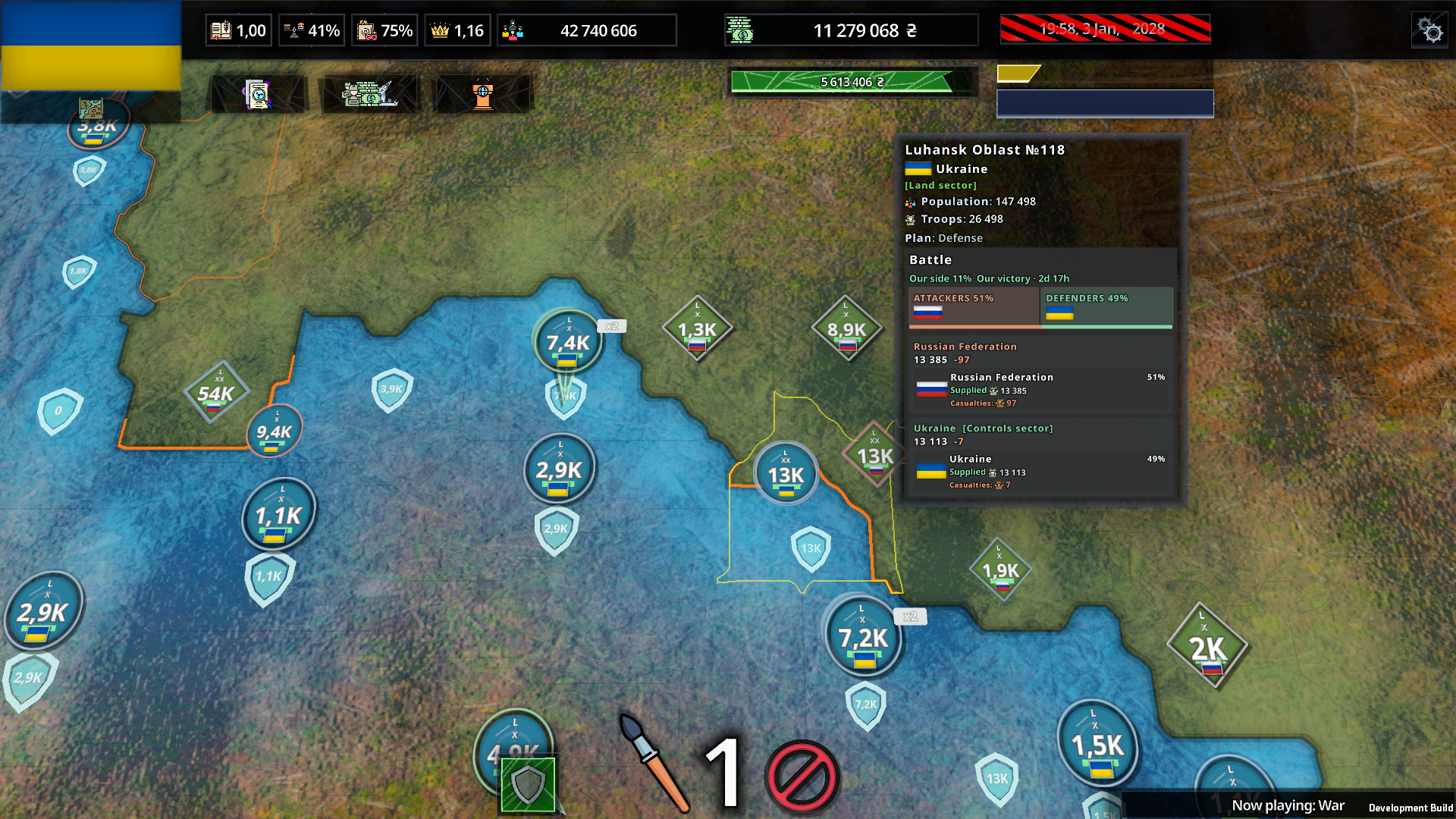
- > PC: hover the battle sector; hold Alt for expanded detail.
- > Android: tap the battle sector.
- 1. Resolution and forecast.
- 2. Attackers / Defenders balance.
- 3. Coalitions, countries, supply and losses.
NAVAL BATTLE
- # Participant: Our side / Enemy.
- # Outside observer: coalition shares.
- Fleet and Aviation are shown separately.
- ! No attacker / defender roles, control or supply.
- Casualties here belong only to this active battle.
- > Country totals: hover / tap Population.
1 RESOLUTION
- # Our side 11% = 11 / 100 resolution progress for you.
- + Our victory | 2d 17h = current forecast and ETA.
- ! Forecast changes with leadership and supply.
- No active push = resolution is not moving.
2 SIDE BALANCE
- # Attackers 51% / Defenders 49% = share of committed forces.
- ! This is not victory chance and not capture progress.
- Flags identify every country participating on that side.
- A near 50 / 50 fight can still have stored progress for one side.
3 COALITIONS
- # Coalition name groups allies fighting together.
- 13 385 = current coalition forces in this battle.
- X -97 = accumulated combat casualties.
- Controls sector = the coalition currently defending control.
4 COUNTRY ROWS
- # 51% / 49% beside a country = current battle leadership share.
- + Supplied = connected to military supply from the capital.
- Army / fleet and aviation icons show current forces by type.
- Casualties show accumulated losses by type.
Chapter 14
Reduce losses and resolve battles
RESOLUTION
- Leading attacker coalition above 50 advances; controller coalition above 50 reverses.
- Attackers resolve control at +100; controller defense wins at -100.
AIR SUPERIORITY
- At least 1.25x enemy air: own land / sea losses x0.5.
- Enemy at least 1.25x your air: own land / sea losses x3.
- Air / 3 adds effective leadership; air losses are unaffected.
LAND CONTROLLER ADVANTAGE
- In a Region, the current controller inflicts x3 losses on non-controller land and air forces.
- Sea / Ocean has no controller, so this never applies to naval battles.
LAND BATTLES
- Restore supply, secure an escape Region, keep control and maintain air superiority.
- Cut enemy supply, block escape Regions and isolate the defender.
NAVAL BATTLES
- Supply, encirclement, isolation and controller modifiers do not apply.
- A smaller fleet takes ratio-based extra fleet losses, capped at x3.
Chapter 15
Interface palette, saves and audio
SAVE LOCATIONS
- Windows: %USERPROFILE%\Documents\My Games\AfterWar\Saves
- Android: Android/data/<package-id>/files/Saves
- Windows screenshots: %USERPROFILE%\Documents\My Games\AfterWar\Screenshots
- Android screenshots: Android/data/<package-id>/files/Screenshots
- Save extension: .awsave
CROSS-PLATFORM SAVES
- PC and Android saves work on compatible builds and worlds.
- Move the .awsave file yourself. Each player may save locally.
- Only single-player or the host can load; host load updates clients.
AUDIO
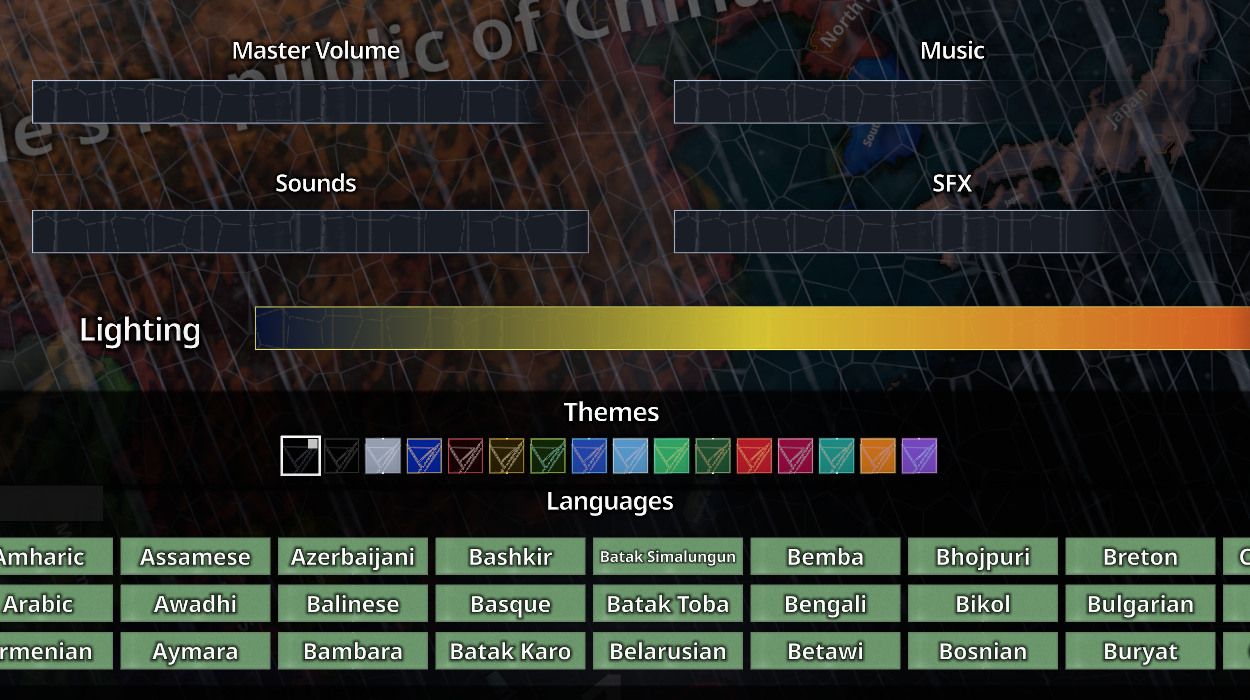
- # Master | Music | Sounds | SFX are separate channels.
- Selected country / subregion / sector ambience uses SFX.
INTERFACE COLOR THEMES
- ! Themes change the interface color palette.
- Panels, buttons and highlights are recolored.
- They do not change country ownership colors.
- Lighting changes the map presentation.
LANGUAGE + CHAT
- + Search any of 191 interface languages.
- > Type a message and press Enter.
- Start with / to enter a command.
- Page 17 lists player commands.
PLAYERS AND EXIT
- Players shows HOST, ADMIN and YOU,
- country, name and ping.
- Only Host can grant or remove ADMIN.
- > Exit to menu disconnects.
- X Exit game closes AfterWar.
Chapter 16
Complete controls
PC CONTROLS
MAP AND SELECTION
- Use WASD or the arrow keys to move the camera.
- Hold Shift to move the camera twice as fast.
- Hold the left mouse button and drag to pan the map. Use the mouse wheel to zoom.
- Before starting the game, left-click a country to select it.
- Left-click a sector or troop marker to select it.
- Click a selected troop group again to see its separate units.
- Hold Shift and drag with the left mouse button from an empty part of the map to select troops with a box.
- Hold Alt to show an expanded tooltip.
TROOPS AND PLANS
- Select troops, then right-click a destination to send them there.
- Press H to stop the selected troops.
- Right-click a plan to assign the selected troops.
- Double-click a Defense plan to assign selected troops to its linked plan.
- Select Brush, then right-click a sector to create a plan. Keys 1-9 change the brush width.
- Select Cancel, then right-click a sector to remove its plan.
- Double-click Cancel within 0.6 seconds to remove all your plans.
- Land routes may cross Sea/Ocean. If you end one on water, troops stop at the last reachable land sector.
- Select Cancel, then right-click your own Region twice to begin land decolonization.
INTERFACE AND TIME
- Press Space to pause or resume the game.
- Use the visible pause and speed controls to control the flow of time.
- Hold Tab to show the player list.
- Press Esc to close the current window or open Settings.
- Press the backquote key or the quote key to open the console.
- Click the country flag in the selected sector panel to open that country's panel.
- Click your country flag in the upper-left corner of the main interface to open the console.
- Hover over the date and time to view the calendar.
ANDROID CONTROLS
MAP AND SELECTION
- On Android with a keyboard and mouse, use PC controls; touch remains available.
- Drag with one finger to pan the map.
- Pinch with two fingers to zoom in or out.
- Double-tap the same country within 0.6 seconds to select it. Then press Start <country>.
- Tap a sector or troop marker to select it.
- Tap a selected troop group again to see its separate units.
- Press Select, drag a box around the troops, then release. The troops inside are selected and the mode turns off.
- Alternatively, hold an empty part of the map for about 0.35 seconds, then drag a selection box.
- Tap a battle sector or the date and time to view details.
TROOPS AND PLANS
- Select troops, press Move, then tap the destination.
- Press Hold to stop the selected troops.
- Select troops and press Route. Tap route sectors in order; Undo removes the last point, Done issues the order and Cancel discards it.
- Tap a plan to assign the selected troops.
- Double-tap a Defense plan to assign selected troops to its linked plan.
- Select Brush, then tap a sector to create a plan. The Size control changes the brush width.
- Select Cancel, then tap a sector to remove its plan.
- Double-tap Cancel within 0.6 seconds to remove all your plans.
- Land routes may cross Sea/Ocean. If you end one on water, troops stop at the last reachable land sector.
- Select Cancel, then double-tap your own Region to begin land decolonization.
INTERFACE AND TIME
- Use the on-screen pause and speed controls to control the flow of time.
- Tap the country flag in the selected sector panel to open that country's panel.
- Tap your country flag in the upper-left corner of the main interface to open the console.
- Tap the date and time to open the calendar.
Chapter 17
Console reference
OPEN AND USE
- PC: Backquote / quote key | Android or PC: click the upper-left player flag | Enter: run | Tab: autocomplete | Up / Down: history
- Use /help for exact syntax. Quote country names with spaces. Cheat commands change the game; Multiplayer authority can limit them.
SESSION + INFO
- /help [command]
- /commands
- /whoami
- /country_info ["country"]
- /country "country"
- /spectator
- /exit
- DISPLAY
- /screenshot [1080|1440|4K|8K|16K]
- /interface [on|off]
- /interface_time [on|off]
- /render_scale "0.3..2"
COUNTRY + ECONOMY
- /volya "amount" ["country"]
- /research [list|all|r_airpower|
- r_oceans|r_seas] ["country"]
- /money [add|set] "amount" ["country"]
- /population [add|set] "amount"
- /defolt_time [set|add] [hours|days]
- /stability "percent" ["country"]
- /corruption "percent" ["country"]
- /army [add|set] [land|naval|air|all]
MAP + DIPLOMACY
- /annex all ["country"]
- /annex_sector "sector_id" ["country"]
- /annex_subregion "id_or_name" ["country"]
- /annex_country "source" ["target"]
- /annex_tool [on|off] ["country"]
- /declare_war "aggressor" "target"
- /peace "country_a" "country_b"
- /relation ["source"] "target" "value"
- /wars ["country"]
- /union "country_a" "country_b" "name"
- /alliance ... alias of /union
- /peacefull [on|off] ["country"]
- /peaceful ... alias
HOST ADMINISTRATION
- /admin "player nickname"
- /unadmin "player nickname"
- Only Host can grant or remove ADMIN.
- Admins can use authorized country
- and union controls.
- RELEASE
- Developer diagnostic commands are
- unavailable in Release.
- /annex_tool changes new Attack
- plans into Annex plans.